
A recognisable factory layout
Drag approved workstations onto a canvas, group production areas visually and save the arrangement.
ERPX Manufacturing / Floor Plan
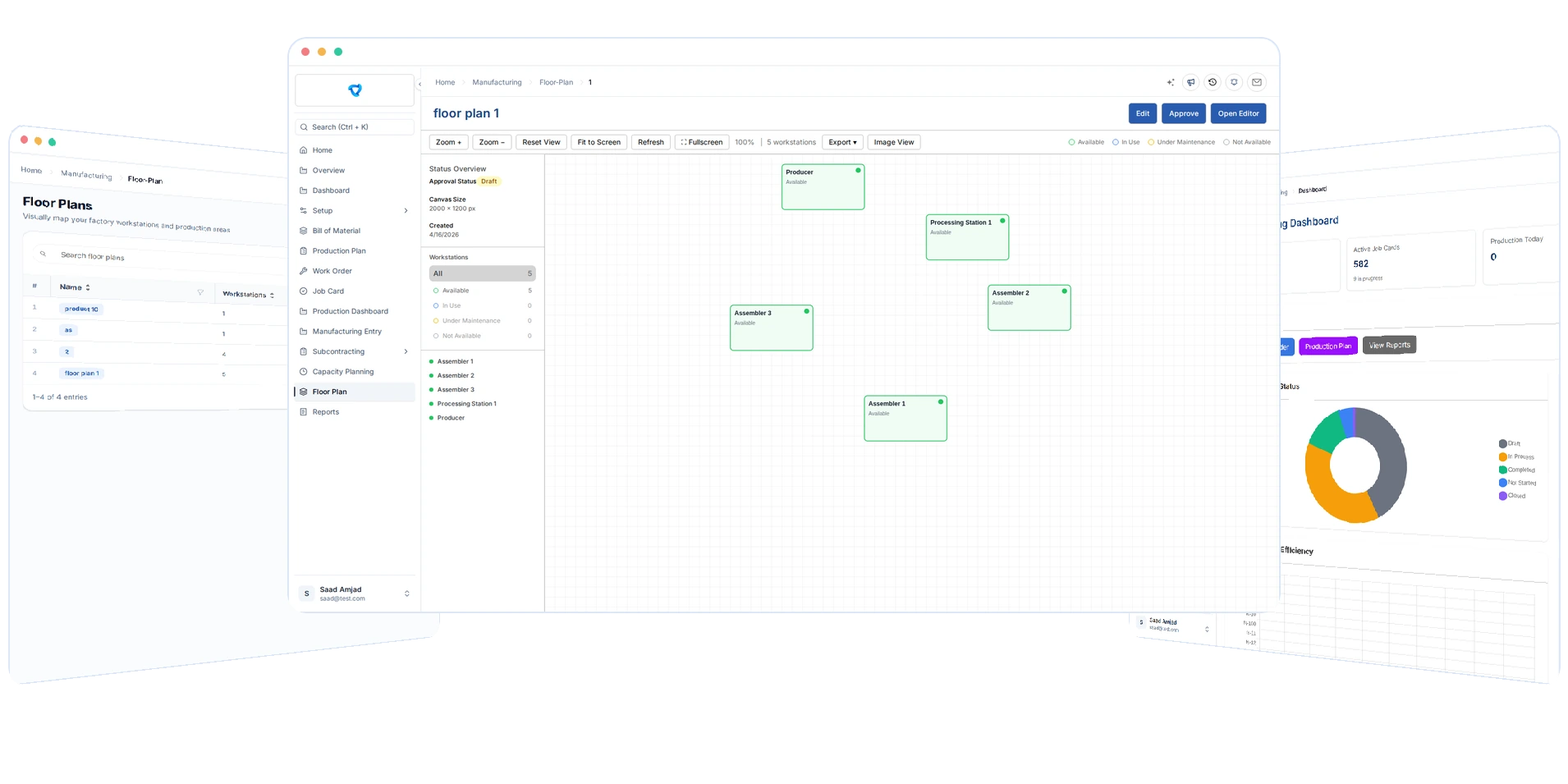
Place workstations on a shared factory layout and view their availability, active job cards and assigned operators in one place.
At a glance
The Manufacturing Floor Plan gives teams a visual view of workstation status and recorded job-card activity across the factory.
Back to ManufacturingFeatures
Key tools for managing this part of your production process.
Drag approved workstations onto a canvas, group production areas visually and save the arrangement.
See Available, In Use, Under Maintenance, Not Available and Unknown states with status counts and filters.
Select a workstation to review its current job card, operation, operator, quantity and linked source document.
Use fullscreen with a status legend, or export the layout as PNG, JPG, SVG or a printable PDF.
Inside Floor Plan
See how teams use ERPX to manage production records and day-to-day work.
Layout setup
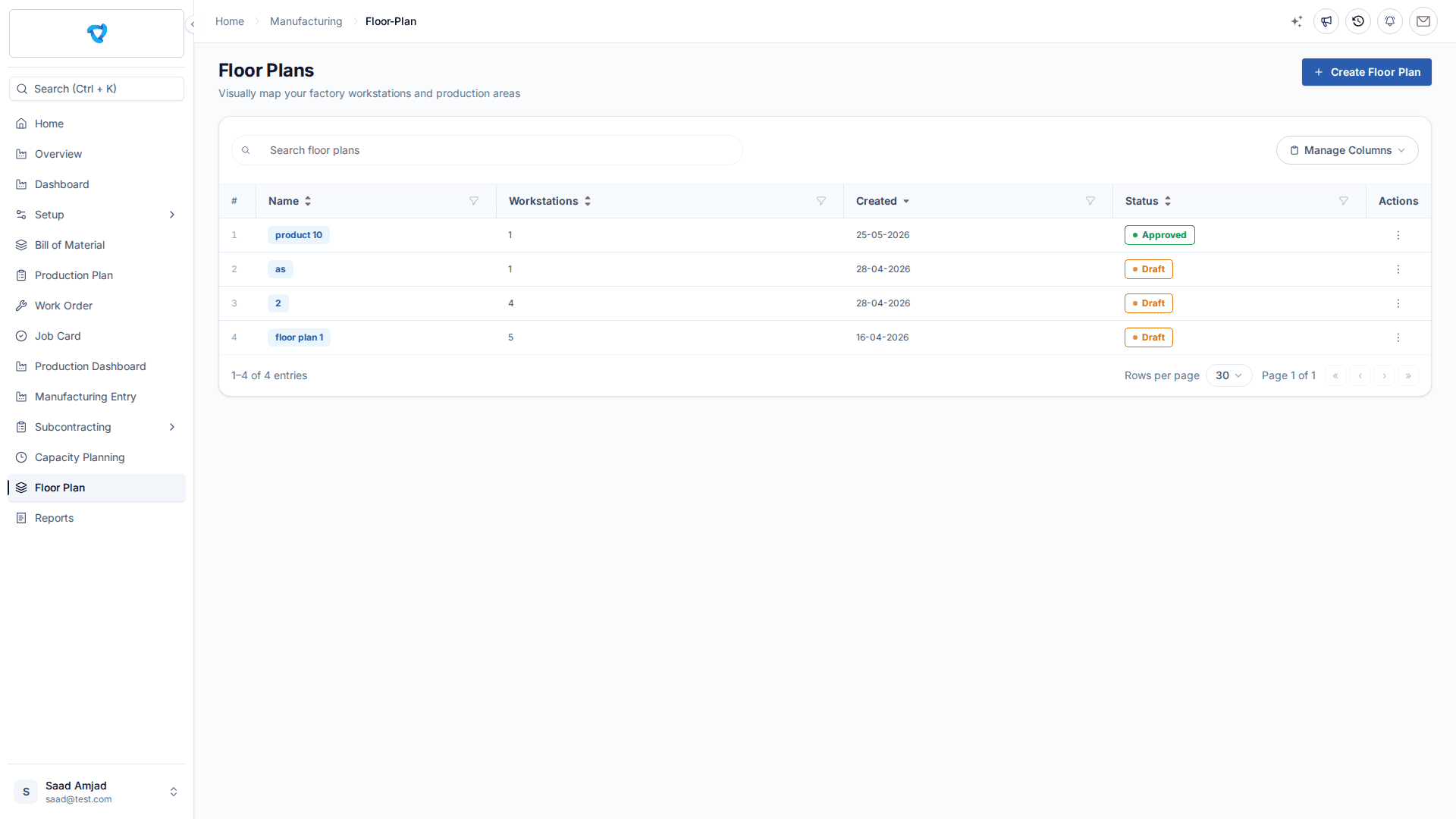
Create and approve workstations first. Use familiar names such as North Cutting Table or Press 2 so supervisors can connect the screen with the physical workspace.
Search the available workstations by name or type, then drag them onto the canvas. Each workstation can appear only once on the same floor plan.
Move and resize nodes, use Undo or Redo, and save pending changes. Approval freezes editing for daily use; unapprove the plan when the physical layout changes.
Use image or detail nodes, Fit to Screen and fullscreen. Leave space between production areas and keep workstation names short enough to read from a wall display.
Live production view
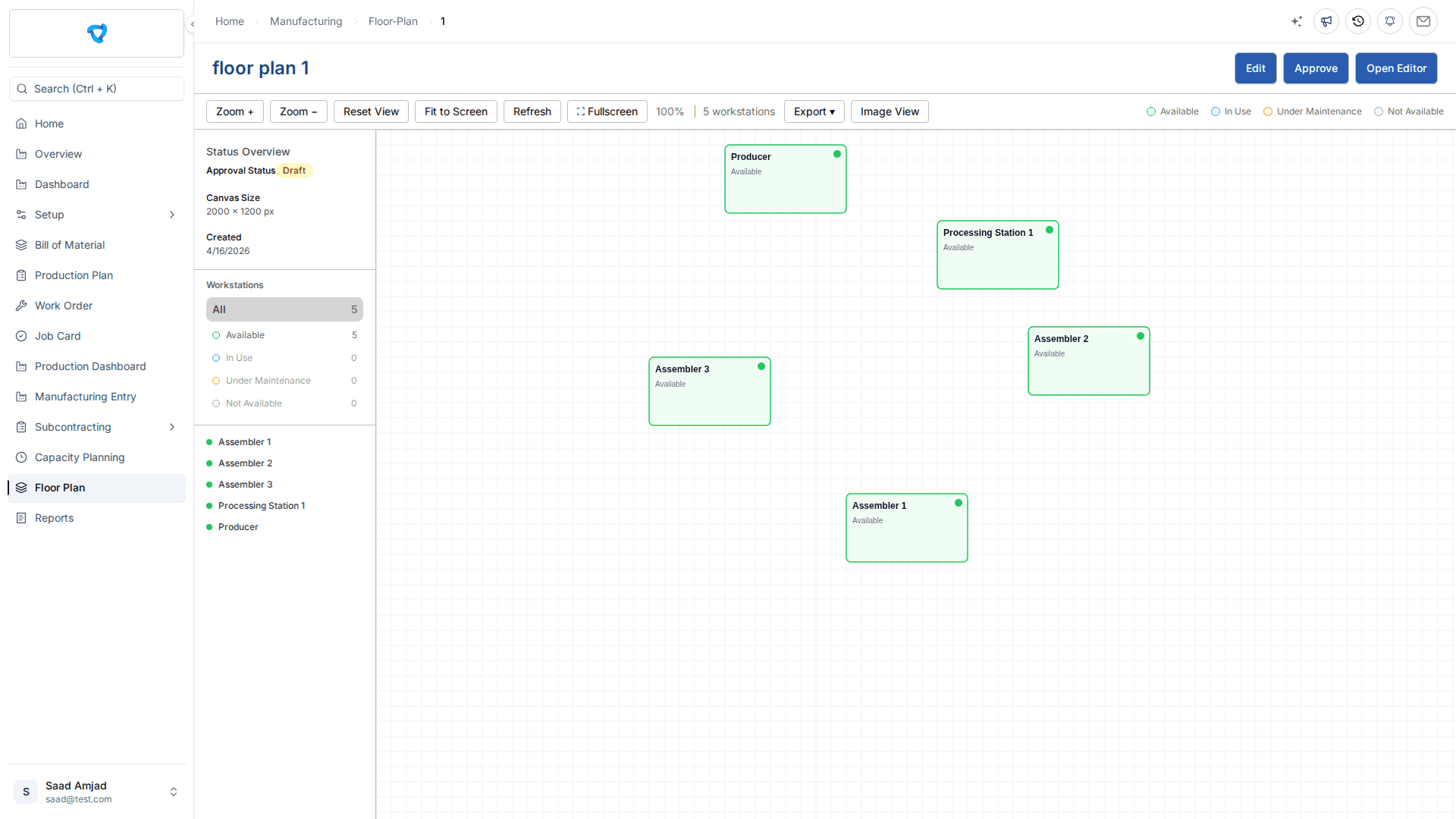
Status filters narrow the layout’s workstation list. Live events update production activity, with periodic refresh as a fallback and a manual Refresh action for a recent correction.
In Use indicates active production recorded on the workstation. Under Maintenance and Not Available reflect availability settings. Unknown means no usable live status was returned and needs a record check.
Open the workstation’s current card and review the operator, operation and quantity. Where available, its production plan or sales order link opens the demand behind the work.
If a machine appears free while work is running, check that the operator started a job card on that exact workstation. The floor view reflects ERPX activity; it does not measure machine performance through sensors.
Production example · illustrative figures
Illustrative workstation records show how a supervisor can move from a status colour to the next practical action.
| Workstation | Displayed status | Recorded context | Next action |
|---|---|---|---|
| North Cutting Table | In Use | Cutting card for WO-250 | Open the card to check its operator and output |
| Stitching 2 | Available | No active job card | Check the schedule before assigning work |
| Press 1 | Under Maintenance | Availability set on the workstation | Confirm readiness before releasing a card |
| Packing 3 | Unknown | No usable live status returned | Refresh and check the workstation record |
A useful floor display connects recorded production to familiar workstation names. Its accuracy depends on job-card activity and availability records being kept current.
Product documentation
Find setup, production and reporting guidance for this part of ERPX Manufacturing.
Buyer questions
The documented Floor Plan uses job-card events and workstation availability records. It shows the operation, operator, quantity and source document where available. It is an operational status display, not an automatic machine-telemetry or OEE measurement system.
The workstation must be approved before it appears among available workstations. Check whether it is already placed on the same plan, because each workstation can appear only once. Layout editing is available while the plan is Draft.
Yes. Use Fit to Screen and fullscreen for a shared display; the status legend remains visible. The export menu supports PNG, JPG, SVG and Print / Save as PDF. Save the layout before approving it for daily use.
Personalized ERPX demo
A focused walkthrough built on how your team works today and what you want to improve next.
Pick a workflow from