
ERPX Desktop
Employee attendance via barcode scanning, job card management, and offline-first sync in one lightweight Windows app built for your organisation.
Auto-updates
Silent background updates, zero downtime
Offline-first
Works without internet, syncs on reconnect
Secure
AES-256 credential storage
Fast
Instant response, native Windows app
x64 / Win 10+
Windows 10 (1809+) or Windows 11
What's Inside
Three focused modules built for everyday operational use
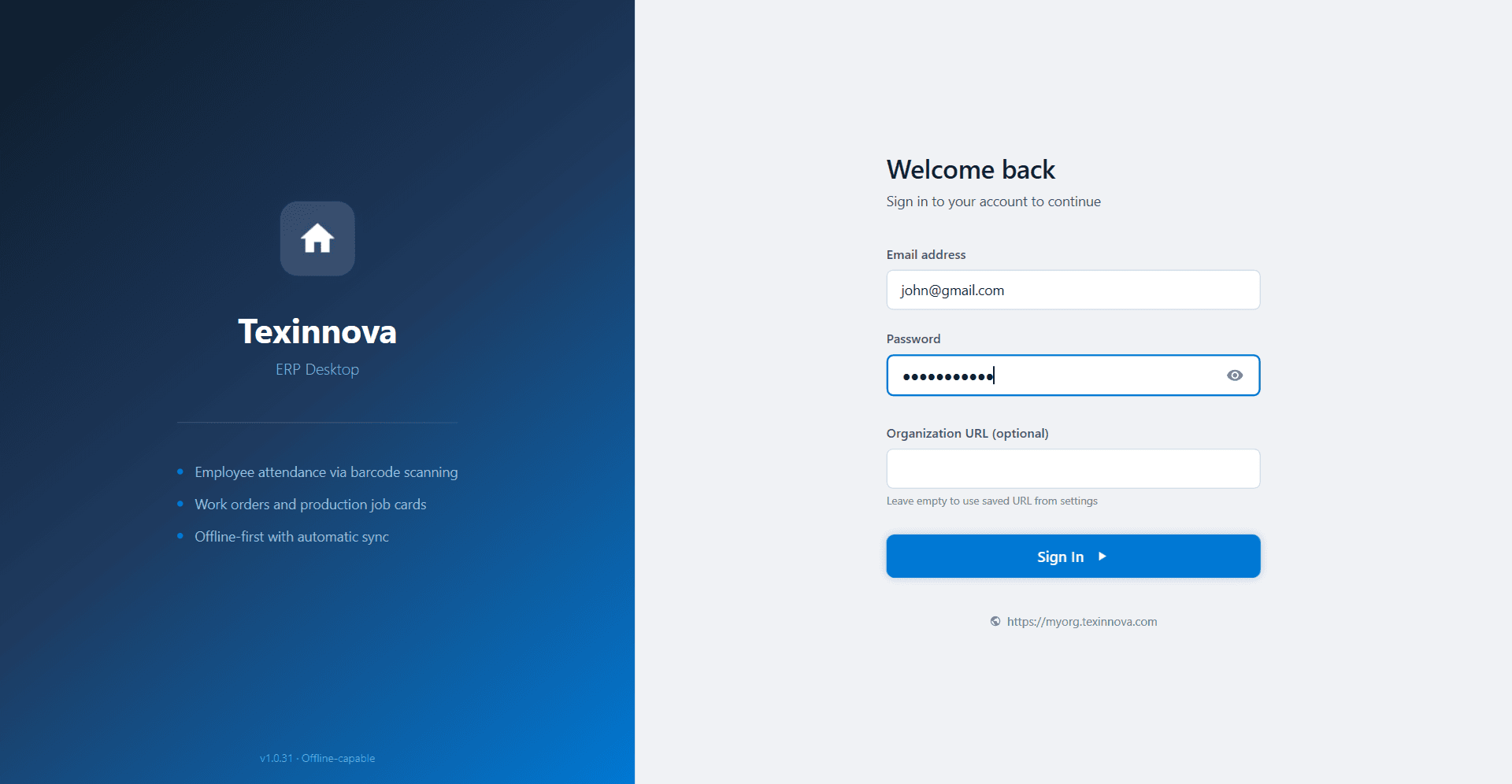
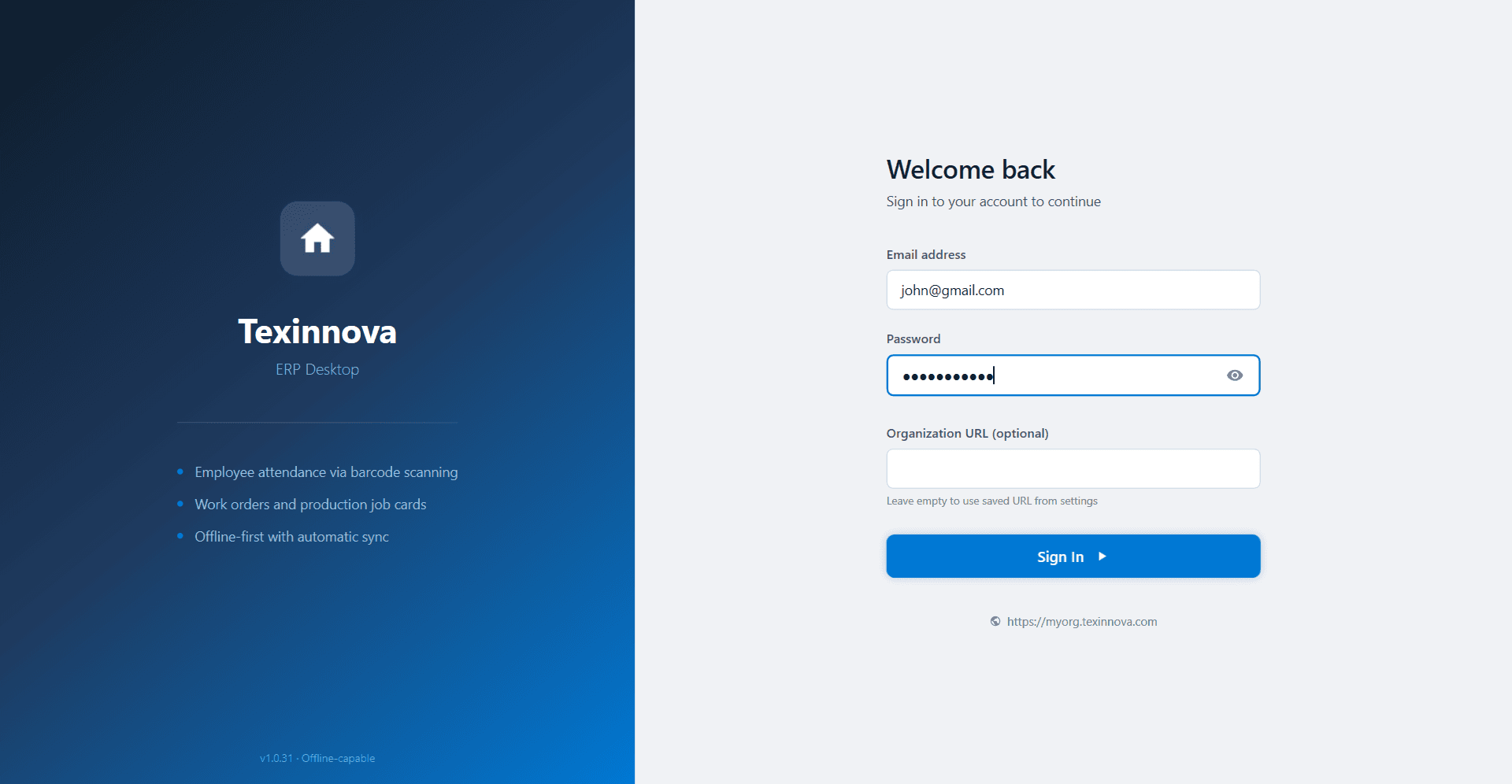
Organisation-aware sign-in
Sign in with your ERPX email, password, and Organisation URL. The app remembers your workspace so your team gets started instantly on every launch.
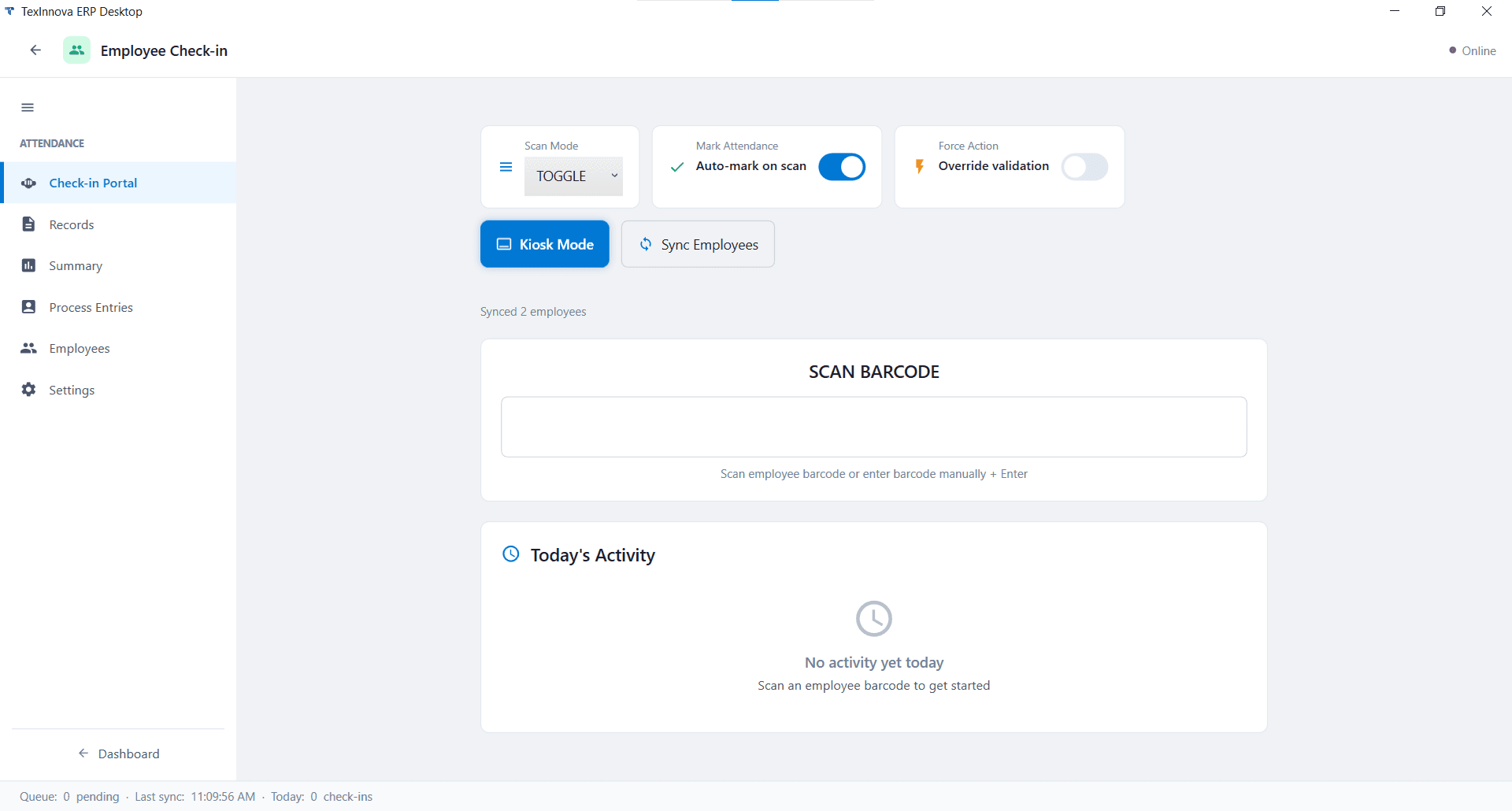
Full attendance dashboard
Manage the entire attendance workflow from one place. Switch scan modes, trigger employee syncs, view today's activity in real time, and process queued entries.
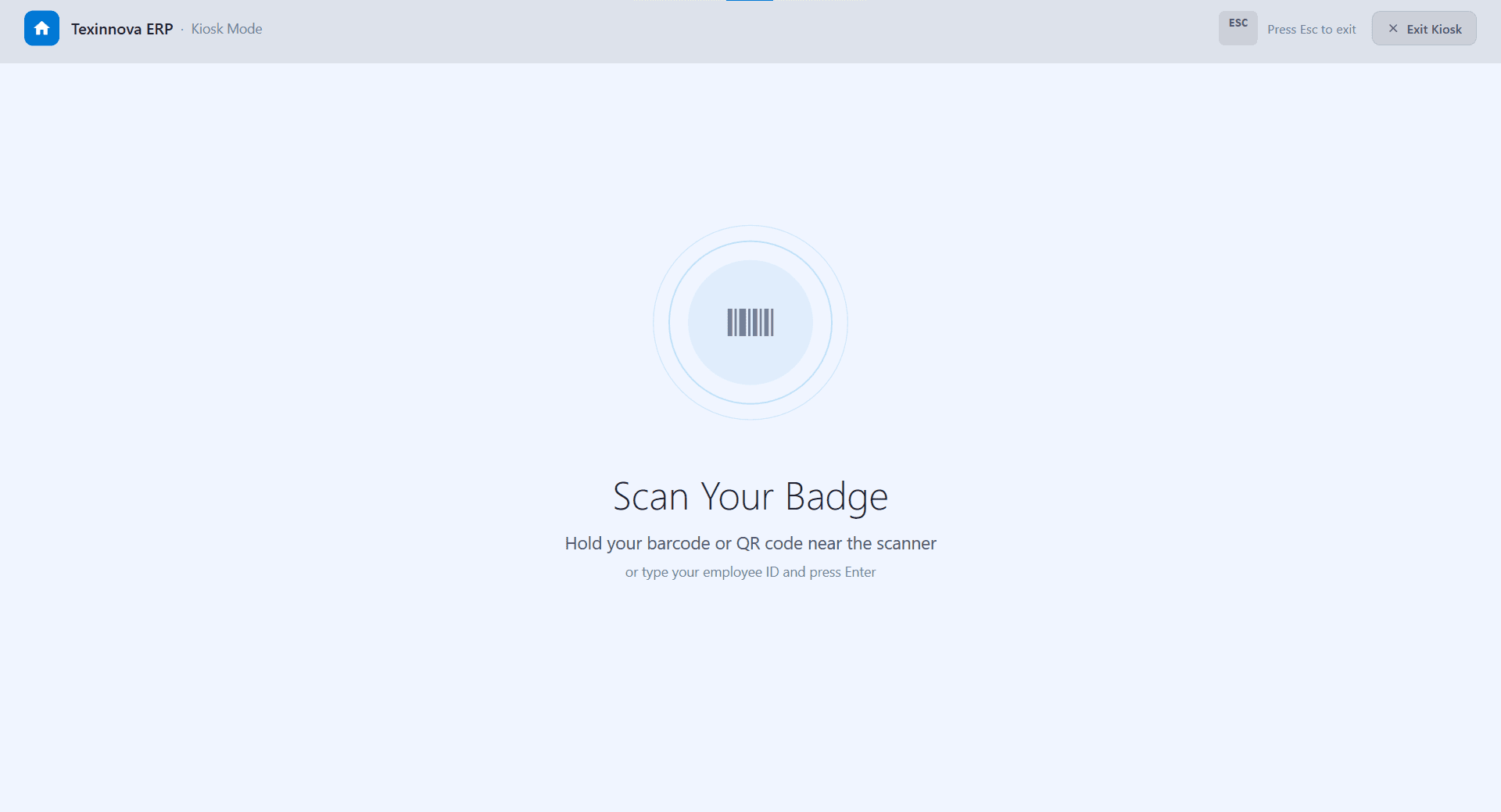
Dedicated badge-scanning kiosk
Turn any Windows PC into a self-service attendance terminal. A distraction-free screen prompts employees to scan their barcode or QR badge, or type their ID and press Enter. Press Esc to exit.
How to Install
Get up and running in under five minutes.
Install the trust certificate before setup on each new device
Windows requires the signing certificate to be trusted before the installer will run. You only need to do this once per device.
Steps to install the certificate
- Download the .cer file with the button below and open it.
- Click "Install Certificate…"
- Select "Local Machine" → Next. (Admin required)
- Choose "Place all certificates in the following store" → Browse.
- Select "Trusted Root Certification Authorities" → OK.
- Click Next → Finish. You should see "The import was successful."
Installing the Manufacturing build instead? It's signed with a different certificate. Get it from More downloads above, or .
Download & install the certificate
Download the .cer file and install it into Trusted Root Certification Authorities on Local Machine. This is required once per device because the app is distributed outside the Microsoft Store.
Download the installer
Click Download Installer to get the .appinstaller file. If your browser or network blocks it, open More downloads and use the .msixbundle package instead.
Run & install
Double-click the downloaded .appinstaller or .msixbundle file. Windows App Installer launches, shows app details, and prompts you to click Install.
Launch & sign in
Open ERPX Desktop from the Start Menu. Enter your ERPX email, password, and Organisation URL, then click Sign In.
Ready to get started?
Free to download · Auto-updates included · No credit card required
Personalized ERPX demo
Bring one real workflow.See it running in ERPX.
A focused walkthrough built on how your team works today and what you want to improve next.
Pick a workflow from
- Operations
- Finance
- People
- Projects