
Timesheets
Put the work behind the hours in view.
A full day can be spread across several projects. Give employees a simple record of the work they did, and give managers the detail they need to review how time was used.
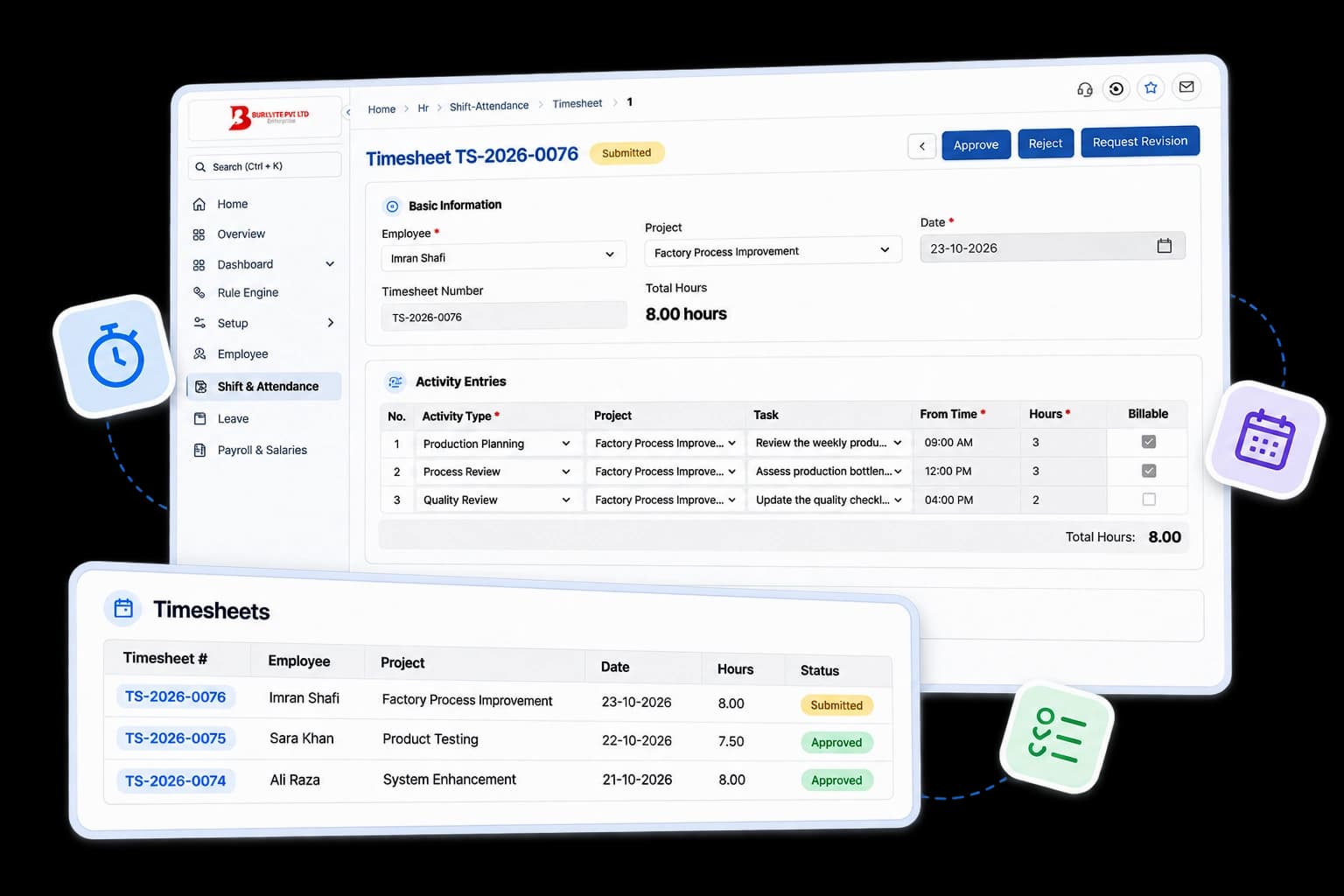
THE STORY BEHIND THE HOURS
A working day.
With the work still attached.
A total tells you how long. A timesheet explains what happened. Bring activities, projects and review decisions together so every hour has useful context.
01 / START WITH THE DAY
The day has different chapters. Keep them in one record.
Development in the morning. A review before lunch. Another project in the afternoon. Record each activity against the same employee and date, with its start time, hours and relevant project or task.
- Activity types give the work a name.
- Descriptions and task links keep the detail nearby.
- Total and billable hours come from the activity rows.
One daily sheet per employee. For another date, start another timesheet. A week’s view brings those daily records together.
- 09:0011:00Development2h
Account workspace
Client portal - 11:0012:00Code review1h
Navigation review
Client portal - 13:0016:00Development3h
Dispatch dashboard
Operations hub - 16:0018:00Planning2h
Next sprint planning
No project assigned
02 / GIVE THE HOURS A REVIEW
A clear submission.
An informed decision.
Employees submit the day when it is ready. Reviewers can approve, request a correction or reject it with a reason. The context travels with the decision.
- Submit for review01 / EMPLOYEEDraft
Capture the day.
Keep editing until the activities, hours and notes are ready.
- Approve timesheet02 / REVIEWERSubmitted
Review the work.
An authorized reviewer checks the entries and their context.
- 03 / REVIEW COMPLETEDApproved
Finalize the time.
The review is complete and the daily time record is finalized.
Send back with context.
A required revision note explains the change. The employee corrects the sheet and submits it again.
Correct → Resubmit → ReviewKeep the reason with the decision.
A rejection note records why the timesheet was rejected, keeping the review understandable.
03 / READ THE HOURS
Five daily sheets.
One useful weekly picture.
See total effort, separate billable time and understand the projects behind it. These two charts use the same sample daily records, viewed from different angles.
THE WEEK IN HOURS
Every day adds to the picture.
THE SAME WEEK, BY PROJECT
Where did the effort go?
The detail is still there. Timesheet Summary shows the activity rows. Employee Activity groups the same work by employee, project and task. Export either report to CSV or PDF.
Explore reports04 / LET THE CONTEXT TRAVEL
The hours are recorded. Let the insight move forward.
Keep a shared view of effort across HR and Projects. Use time records to review project activity, or configure a goal metric that reads total or billable hours for the relevant employee and period.
Start from a project or task and keep its connection on the activity.
Explore ProjectsChoose the hours metric, employee, period and relevant filters.
Explore goals & performanceEmployee · Date · Activities · Projects · Hours
Project reports
Review activity rows or group time by employee, project and task.
Timesheet SummaryEmployee Activity
Configured goals
Use total or billable hours for the selected employee and period.
Choose the metricApply the relevant filters
Buyer questions
A few things about your time records.
Are timesheets daily records or weekly sheets?
Each timesheet belongs to one employee and one date. Record another day on another timesheet. Timesheet Summary and Employee Activity reports can bring those daily records together for a selected period, including a week.
What happens when a timesheet needs a correction?
An authorized reviewer can request a revision with a required note. The employee corrects the timesheet and submits it again. Reviewers can also approve a submitted sheet or reject it with a reason.
What is the difference between attendance and timesheets?
Attendance records presence against a shift. Timesheets record the work done during that time, with project, activity and hour details.
Can ERPX track billable hours?
Yes. Timesheets support total and billable hours so the relevant work can be reviewed separately.
Can timesheet values feed employee goals?
Yes. Timesheets are a supported automatic goal metric source. A configured metric can calculate total or billable hours for the selected period and employee.
THE DETAILS, WHEN YOU NEED THEM
Follow the work.
Keep the guide close.
Personalized ERPX demo
Give every hour its context.Give your team a clearer picture.
Bring a typical working day and the projects your team moves between. We’ll show you how the entries, reviews and time reports connect in ERPX.
Pick a workflow from
- People
- Projects