ERPX User Management

Control who can view, edit, and approve ERP work

Give each person the access their job needs. Set department roles, adjust individual permissions, route work automatically, and review who changed what. Keep seat usage visible as your team grows.

ERPX Roles list showing built-in roles

Direct answer

What is ERPX User Management?

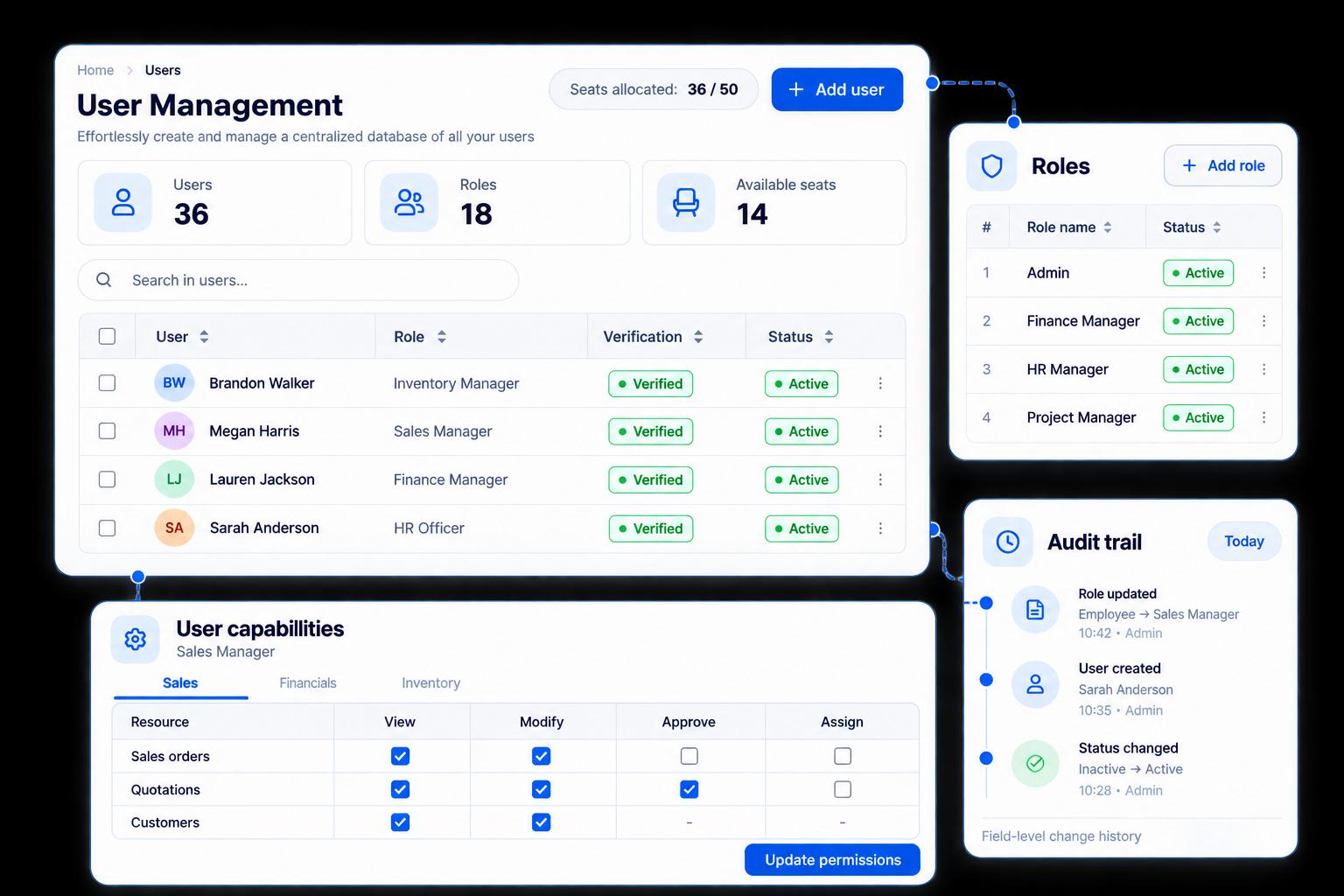
ERPX User Management helps administrators give each person the access their job needs. Combine built-in roles with individual permissions across your subscribed modules, route work with assignment rules, manage allocated seats, and review recorded changes in the Audit Trail Report.

Access control, in layers

What someone can do, how work finds them, and what gets recorded

Roles set the baseline, capabilities handle the exceptions, assignment rules and seats govern who gets the work, and the audit trail records every change that results.

Layer 1 · Roles

Start with roles that match your team

Built-in Manager and Officer roles cover Sales, Purchase, Finance, HR, Inventory, Manufacturing, Projects, CRM, Export Documents, and more, alongside Admin and Employee. Give each person one or more roles and they start with the access their job needs.

  • Manager and Officer roles per department, plus Admin and Employee
  • Several roles can be combined on one user
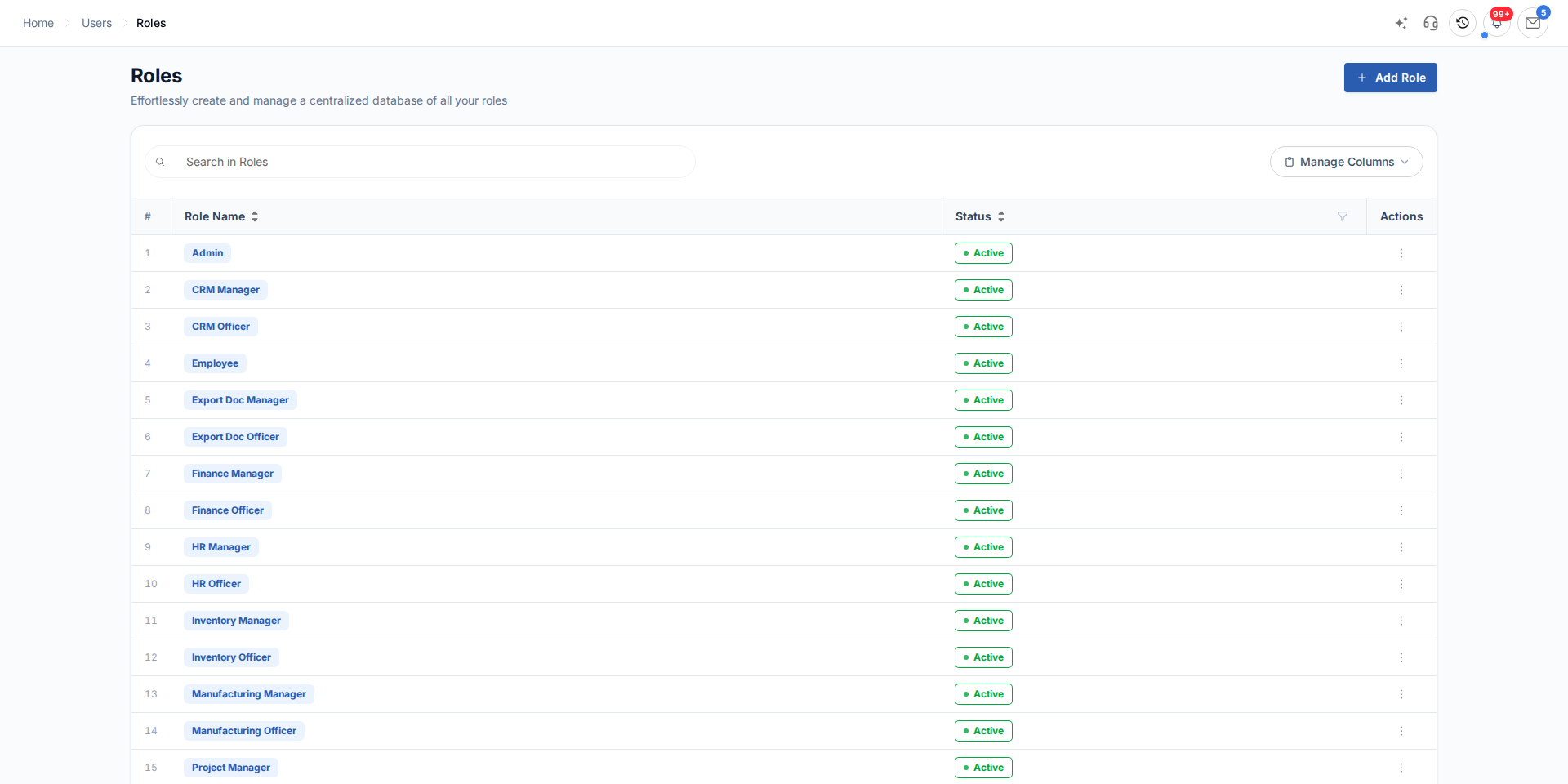
ERPX Roles list showing active built-in roles including Admin, CRM Manager, Export Doc Manager, Finance Officer, HR Manager, and Inventory Officer

Layer 2 · Capabilities

Exceptions for one person, without a new role

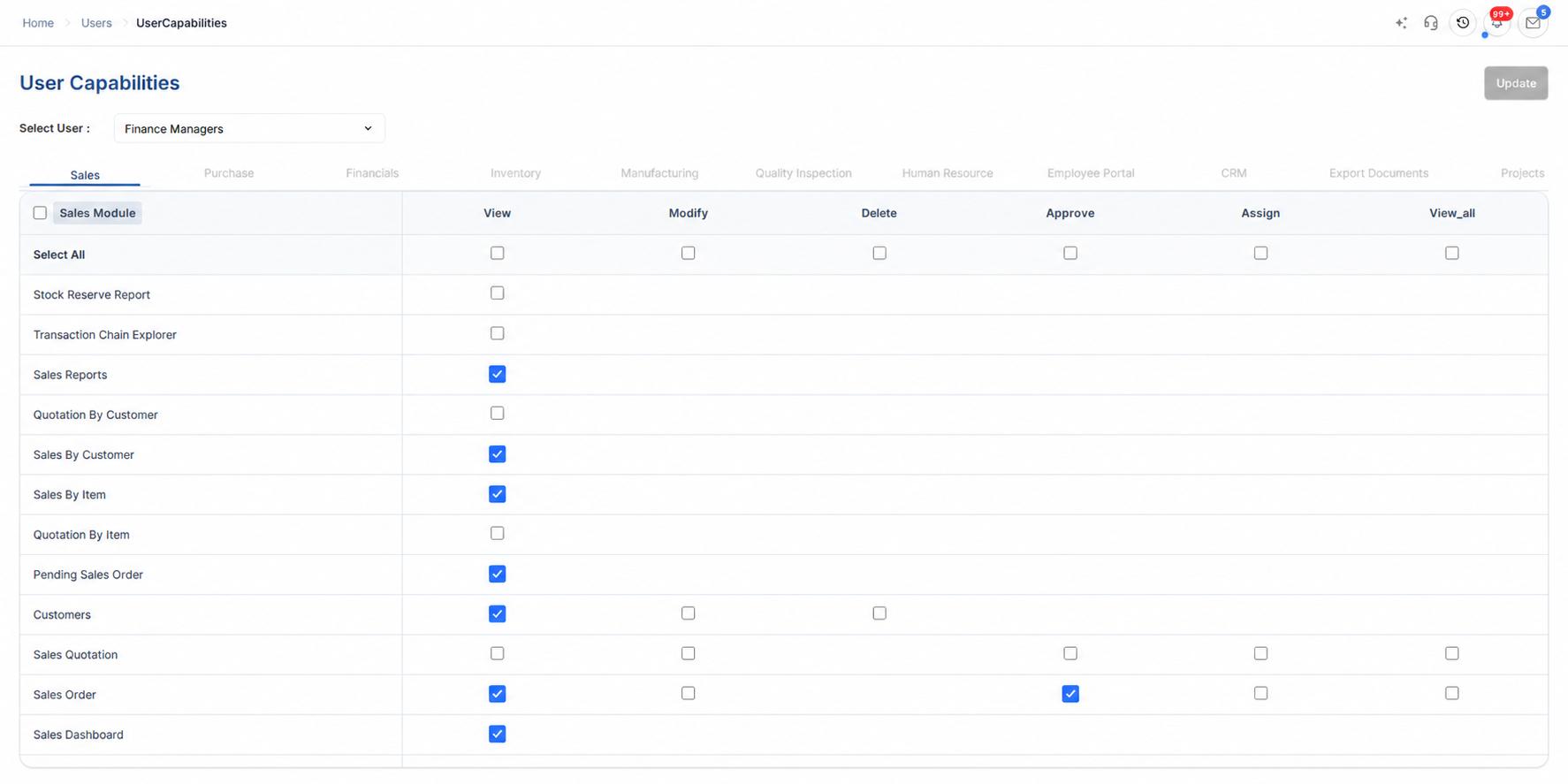
When a role needs an exception, adjust access for that person. Within your subscribed modules, User Capabilities lets you grant or restrict the actions available on each screen. For example, give one finance user permission to approve sales orders while keeping the shared Finance role unchanged.

  • Control viewing, editing, approval, and other actions where supported
  • Grant or restrict individual permissions within your subscribed modules
ERPX User Capabilities screen showing selected viewing permissions for Sales screens and approval permission for Sales Order

Layer 3 · Routing and seats

Assignment rules and seat allocation

Route supported documents to the right people using configured conditions and fixed, round-robin, or load-balanced assignment. Manage seats separately from account status: allocate subscription seats to users who work in ERP modules, while employee portal users can sign in without a seat.

  • Choose a fixed assignee, round-robin distribution, or load balancing
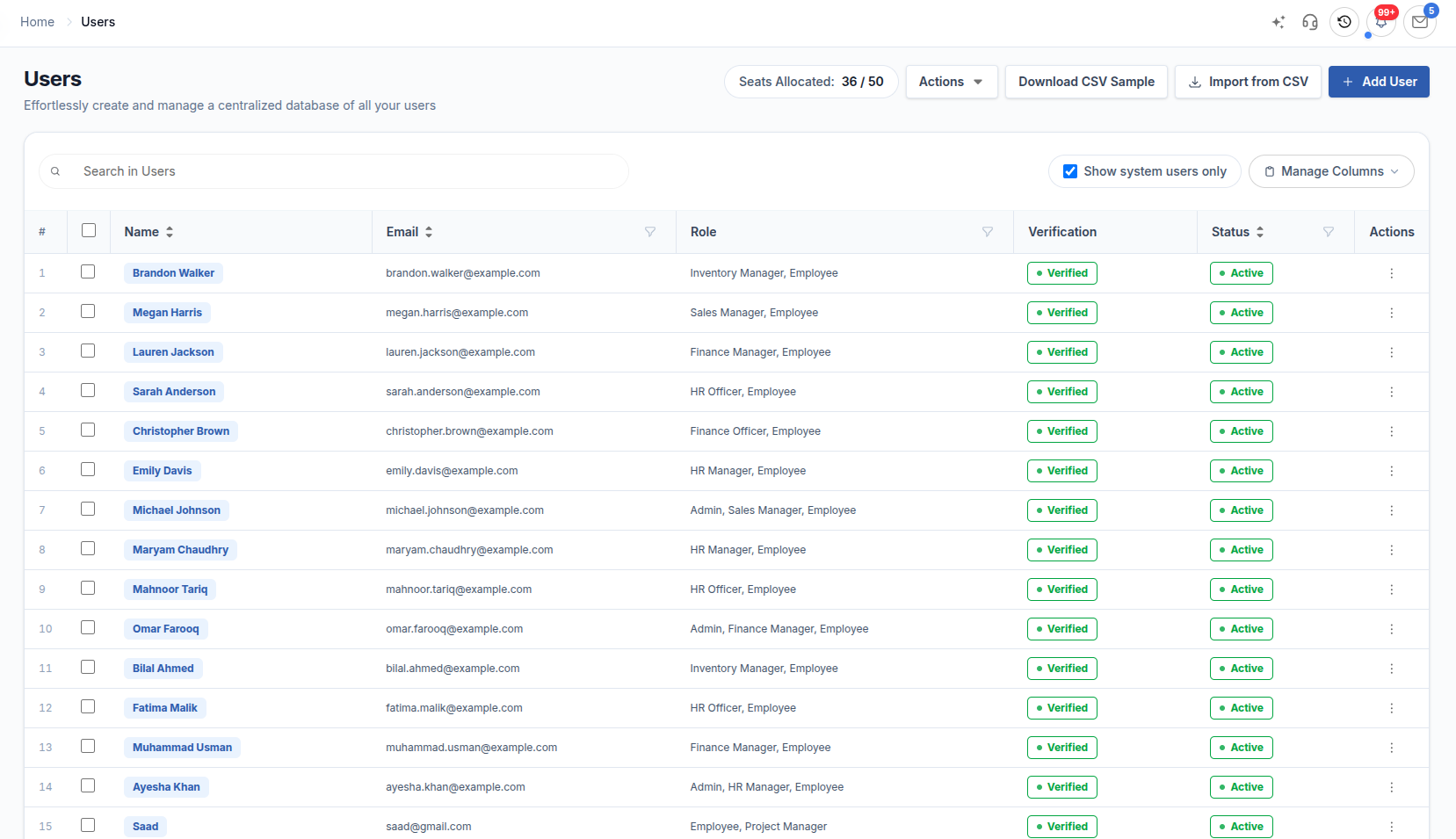
  • Seats allocated versus plan, visible on the Users list
ERPX Users list showing Seats Allocated 24 of 50, with each user’s roles, verification, and active or inactive status

Layer 4 · Audit trail

See who changed a record and what changed

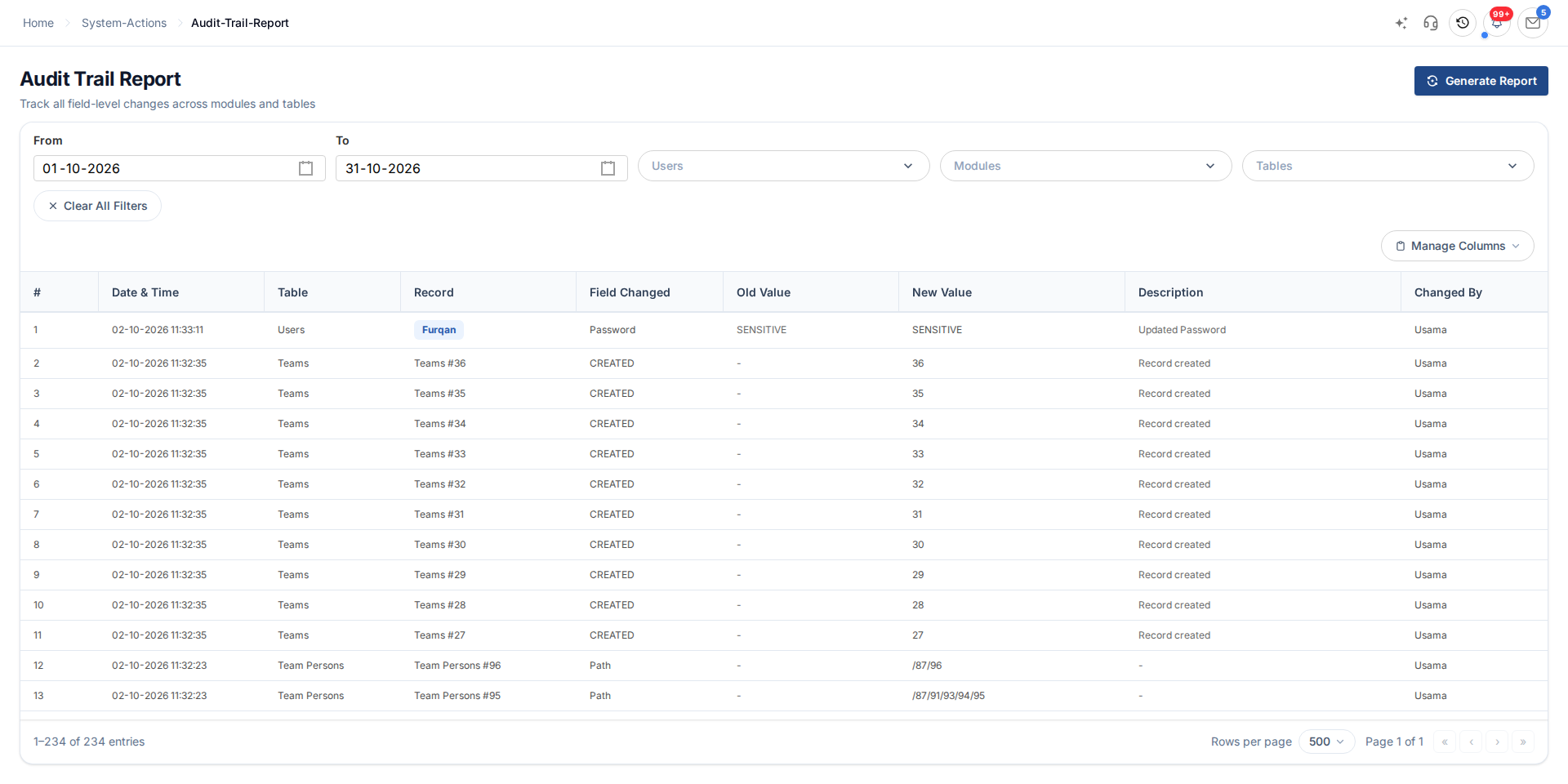
The Audit Trail Report tracks field-level changes across modules and tables: what changed, the old and new value, when, and who made the change. Filter by date range, user, module, or table, and sensitive values such as passwords are masked.

  • Old value, new value, timestamp, and changed by for each change
  • Filter by date, user, module, and table; sensitive fields masked
ERPX Audit Trail Report listing field-level changes with date and time, table, record, field changed, old value, new value, description, and changed by, with a password change shown as SENSITIVE

AI and access control

The roles you set here decide what ERPX AI can do.

ERPX AI has no separate permission model. Every tool the assistant can use declares a capability, and ERPX checks it against the user’s role when the tool is offered and again when it runs.

Explore ERPX AI

The assistant never has more access than the person using it.

Every AI requestAllowed for this user
  1. RoleCan use the AI assistant
  2. Offer checkTool is offered only if the role allows it
  3. Run checkChecked again just before it runs
  4. Your approvalWrites wait for approve, edit or reject
  5. AuditCapability checks are recorded

AI usage allowance

  • Finance team64%
  • Sales team41%
  • Store keeper88%

Model provider

  • Platform
  • Local model
  • Your own key

A local model never falls back to an off-site provider.

Every AI request passes the same gates: the user’s role must allow the assistant, each tool is checked when offered and again when it runs, changes wait for approval, and checks are recorded for audit. Admins also set usage allowances per user and choose the model provider.

Illustrative data

Your roles
Assistant access
Checked twice
Usage limits
Model choice
The ERPX Your roles connects assistant access, checked twice, usage limits, model choice. Animated beams show information flowing out from the agent.

Who can use the assistant

Only users whose role includes the AI assistant capability can open it.

Checked twice

Each tool’s capability is checked when it is offered and again just before it runs. Checks are recorded for audit.

Usage allowances

Admins set an AI usage allocation for each user and can review usage over time.

Your choice of model

Use the platform provider, a local model or your own OpenAI-compatible key. A local setup never falls back to an off-site provider.

Google sign-in

Sign in with the Google account your team already uses

Enable Google sign-in so employees can use a familiar account to access ERPX. Your organization can use an ERPX-managed or company-owned Google application, while roles and permissions continue to control access inside ERPX.

Who it’s for

Clear access for every department as your team grows

Built for teams managing access and accountability

  • Finance and operations teams that need approval access limited to authorized people
  • Managers who need to trace recorded changes back to the person who made them
  • Growing organizations managing user access across several departments
  • Teams that need new work routed automatically to the right owner

Set up access in three steps

  • Assign built-in roles that match each person’s responsibilities.
  • Review individual permissions and adjust exceptions within your subscribed modules.
  • Allocate seats to users who work in ERP modules, and review usage against your plan.

Product documentation

Explore the setup guides

Learn how to manage users, assign roles, adjust permissions, and allocate seats in ERPX.

Buyer questions

User management questions from ERP buyers

ERPX ships with Manager and Officer roles for departments including sales, purchase, finance, HR, inventory, manufacturing, projects, CRM, and export documents, alongside an Admin role and a general Employee role. A user can hold several roles at once.

Yes. Within your subscribed modules, the User Capabilities screen lets you grant or restrict an individual user’s permissions beyond their assigned role. Available actions include View, Modify, Delete, Approve, Assign, and View all, depending on the screen.

User Assignment Rules route supported documents to selected users when the configured conditions are met. Choose a fixed assignee, round-robin distribution, or load balancing to match how your team handles work.

Seat usage is based on allocated subscription seats. Allocate seats to users who work in ERP modules; employee portal users can sign in without one. The Users list shows allocated seats against your plan so administrators can review usage separately from account status.

Yes. The Audit Trail Report records field-level changes across modules and tables, with the old value, new value, time, and the user who made the change. You can filter it by date range, user, module, and table, and sensitive values such as passwords are masked.

Users can sign in with Google. An organization can use the ERPX-managed Google application or connect its own company-owned Google OAuth application.

Only users whose role includes the AI assistant capability can use it. Each AI tool declares the capability it needs, and ERPX checks it against the user’s role when the tool is offered and again when it runs. Admins can also set AI usage allowances per user.

See ERPX User Management

Bring your own team structure.See how ERPX keeps data access controlled.

Walk through roles, per-user capabilities, assignment rules, and the audit trail mapped to how your departments work today.

Pick a workflow from

  • People
  • Operations
  • Finance
  • Sales